
The PPWR Navigator is a dedicated module within Recyda designed to help you manage compliance with the EU Packaging and Packaging Waste Regulation (PPWR). It extends the existing Recyda software by adding PPWR-specific workflows, documentation management, and conformity assessments.
This guide walks you through the key features and steps to work with the PPWR Navigator from data setup to generating your Declaration of Conformity (DoC).
1. Overview of the PPWR Navigator
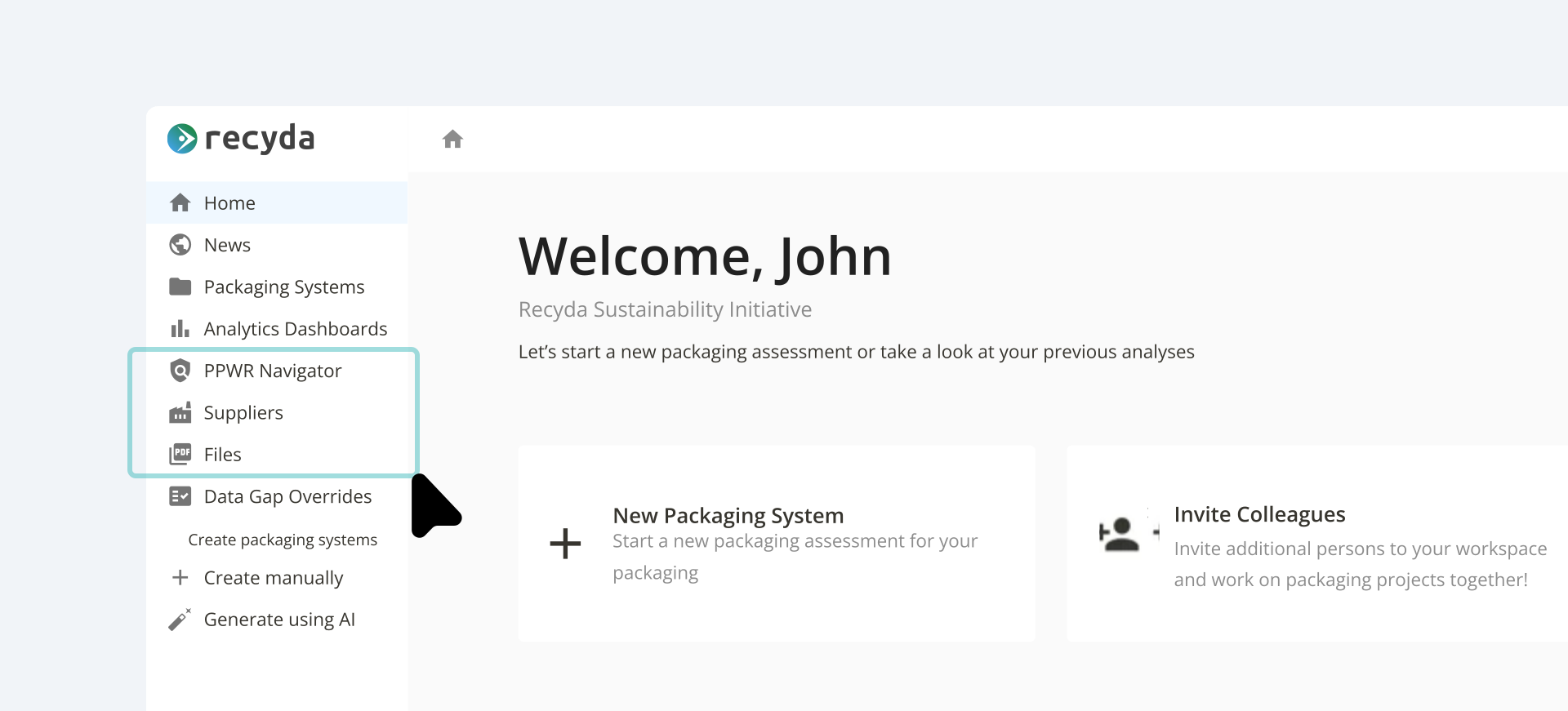
The PPWR Navigator is accessible as a separate module within Recyda. It is structured around three main areas:
|
Area |
Purpose |
|---|---|
|
PPWR Navigator page |
Your packaging portfolio, listed and managed here |
|
Suppliers |
A list of your suppliers of packaging components |
|
Files |
A central repository for all technical documentation-related files |
What the PPWR Navigator helps you achieve:
- Manage conformity assessments for:
- Article 5 - Substances of Concern (Heavy Metals, PFAS)
- Article 11 - Reusable Packaging requirements
- (Future) Article 6 - Recyclability
- (Future) Packaging Minimisation
- Consolidate and approve your Technical Documentation (TD) for each packaging system
- Issue and sign the Declaration of Conformity (DoC)
2. Key Concepts
DoC & TD Summary Document
The Declaration of Conformity (short: DoC) is the legally required document confirming your packaging meets the applicable PPWR requirements. This claim is substantiated by your technical documentation (short: TD), a collection of files (e.g. technical drawings, lab reports, etc.), with the TD Summary Document serving as the main document: It summarizes the results of your PPWR conformity assessment and references all other files that make up your technical documentation such as lab reports or technical drawings.
Packaging Systems
Each entry in the PPWR Navigator represents a packaging system for which a DoC can be generated, which can be:
- A Sales Packaging (e.g. a yoghurt cup with lid and label)
- A Grouped Packaging (e.g. a folding box)
- A Transport Packaging (e.g. a Euro pallet, shrinkwrap, corner protectors, separation sheets)
Each packaging system contains one or more packaging units that consist of one or more components (e.g. cup body, lid, sleeve/label). Use of multiple packaging units is recommended when your packaging system consists of distinct packagings that are opened (and discarded) individually (e.g. a toothpaste tube inside a cardboard folding box).
Existing Data
If you are already using Recyda for recycling assessments or EPR, your existing packaging data carries over. The PPWR Navigator adds new PPWR-specific data fields on top of what you already have - you do not need to start from scratch.
New PPWR-specific system fields include (on the Packaging System Definition page):
- Packaging Number (unique identifier)
- Hierarchic Level (Sales / Grouped / Transport packaging)
- Economic Operator Role for DoC (e.g. Manufacturer, Distributor)
- References to Union Acts (in addition to PPWR) to be included on the DoC
- References to Standards & Specifications used for assessment to be included on the DoC
Additional data requirements for packaging units and components (on Composition page):
- Food Contact (Yes / No) - determines whether Article 5.5 applies (PFAS requirements)
- Reuse intention - determines whether Article 11 applies (Reusable packaging requirements)
- Total Fluorine and Total Organic Fluorine concentration - relevant for Article 5.5
- Heavy Metals concentration - relevant for Article 5.4
3. Initial Workspace Setup
As an admin, set up at least one Business Entity and Signatory in your Workspace Settings (under PPWR Settings).
The Business Entity contains the manufacturer (and optionally also the authorised representative) contact details to be printed on the DoC. Unless you need to link packaging systems to different Business Entities, you can mark a Business Entity as the "default" for DoCs.
The Signatories list allows to define one or more users who can sign a DoC. Only one signature is needed, so it does not matter which of the defined signatories performs the signing step (see Managing the Approval and Signature Workflow).
4. Setting Up Your Packaging Data
Step 1 - Confirm Packaging Numbers
Each packaging system needs a unique identifier to be printed on the Declaration of Conformity.
Step 2 – Define Packaging Type, Role, and Object of Declaration
For each packaging system, specify:
- Is it a Sales, Grouped or Transport packaging?
- What is your economic operator role (e.g. Manufacturer)?
- What is the Object of the Declaration?
.svg)
Step 3 – Register Suppliers
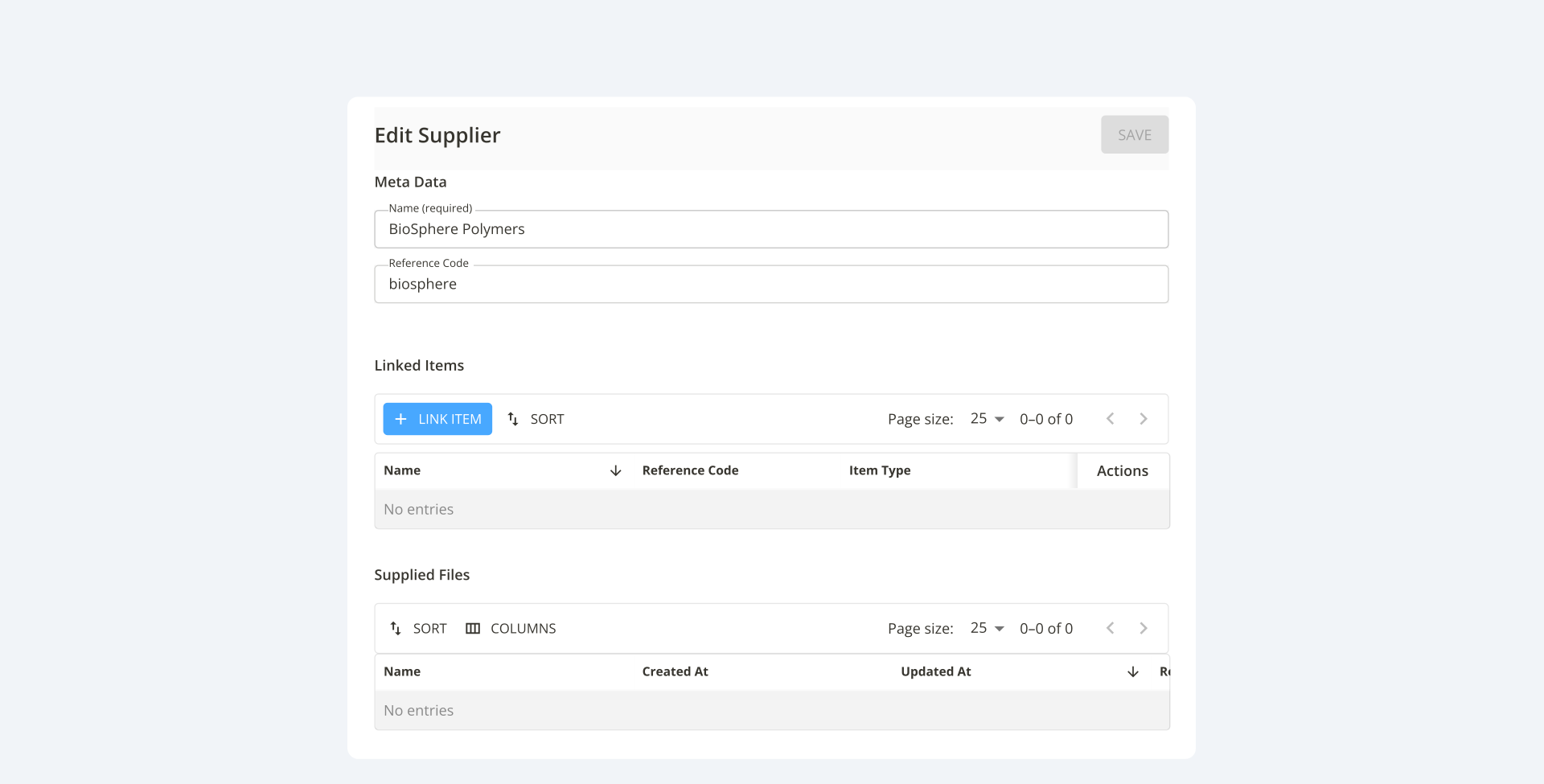
Navigate to the Suppliers page and create entries for all your component suppliers. For each supplier, you can specify:
- Supplier name
- Reference code (optional). This represents the code or number you use in your own system to uniquely identify the supplier.
Suppliers can be linked to packaging units and components.
Step 4 – Register Files
On the Files page, you can keep track of all files supporting your technical documentation, including files received from your suppliers. For each file you can specify:
- File name
- Reference code (optional). This represents the code or number you use in your own system to uniquely identify the file.
- Categorisation (content of the file, e.g. Lab Report – Heavy Metals, Lab Report – PFAS, Technical Drawing)
- Supplier (optional)
- Linked Items (which packaging units or components the file relates to)
You have two options for registering files:
- Upload the file directly to Recyda servers. The file can later be downloaded as part of your technical documentation.
- Enter a link to the file location (e.g. SharePoint, PLM system, ERP). The link is included in your technical documentation and allows you to easily retrieve the file when needed. In case you have no link, you can enter a description of the file can be found.
💡 Tip: Even if you cannot upload the actual document, storing a link to its location ensures you can retrieve it quickly when you're being audited - avoiding a costly search under time pressure.
.svg)
Step 5 – Enter Packaging Unit and Component-Level Data
For each packaging component and component within a packaging system, enter relevant PPWR data:
- Material composition (material layers with weights)
- Total Fluorine concentration (for food-contact packaging). The Total Fluorine (TF) concentration should be below 50 ppm per Packaging Unit.
- Total Organic Fluorine concentration (for food-contact packaging, optional). When your TF concentration is too high, you can still prove conformity with PFAS requirements by demonstrating a Total Organic Fluorine (TOF) concentration below 50 ppm per Packaging Unit.
- Heavy Metals concentration. The threshold of 100 mg/kg applies to each component (and the complete packaging unit as a whole).
- Intended for Reuse (yes/no). State whether the packaging unit is to be considered reusable packaging or not.
- Food Contact Packaging (yes/no). State whether the packaging unit is to be considered food-contact packaging or not.
.svg)
.svg)
What if you don't have specific values? If your supplier only provides a general statement confirming all supplied articles comply with PFAS and Heavy Metal limits, you can enter the relevant threshold value (i.e. 100 for heavy metals).
Step 6 – Link Suppliers and Files
For each packaging unit and component, link the related Suppliers and Files from steps 3 and 4 (if you haven't done this already).
.svg)
.svg)
5. Running Conformity Assessments
Scope Assessment
The Scope Assessment determines which of the requirements from PPWR Articles 5-12 apply to the packaging unit.
Ensure that all scope assessment questions are fully answered because they will influence all other Article assessments!
.svg)
Article 5 – Substances of Concern
Heavy Metals Assessment
Check whether the heavy metal concentration per component is within the limits set by Article 5(4). Unless you have provided data on the Composition page, you will need to run the assessment manually.
.svg)
PFAS Assessment
Only relevant for food-contact packaging.
Check total fluorine/total organic fluorine concentration in order of precedence: Ruleset > Packaging Unit Level > Component Level.
Packaging Unit level precedence: anything set at the packaging unit level always takes precedence over component data.
If packaging unit-level data is missing, the platform refers to component data and calculates a weighted average based on component weights.
Both fields exist due to real-world supply chain scenarios:
- Packaging Unit Level: The customer sends the packaging unit to a lab for testing, receiving results for the entirety of the packaging unit.
- Component Level: A customer buys 3 components from 3 different suppliers, and each supplier provides a separate test report for their supplied part.
In practice, you'll either have a value for the packaging unit or for the individual components.
.svg)
Reuse Assessment
Only relevant for packaging intended for reuse.
Make sure to also include a qualitative description of your assessment in the technical documentation (i.e. register and link a file with category "Reusability Assessment").
Assessment Results
Each assessment leads to one of the following results:
- Pass (all critical questions have been answered, and all requirements have been met)
- Incomplete (missing information - no conclusive result can be determined yet)
- Fail (some requirements have not been met; drill down into the specific ruleset to identify the issue)
- Not applicable (this specific part of the regulation does not apply to the packaging unit)
The PPWR Overall Assessment aggregates results across all individual rulesets.
.svg)
6. Managing the Approval and Signature Workflow
As per Article 15(2) of the PPWR, the PPWR Navigator includes a structured review & approval process to ensure Technical Documentation is completed and conformity is assessed before a DoC is drawn up. The process looks like this:
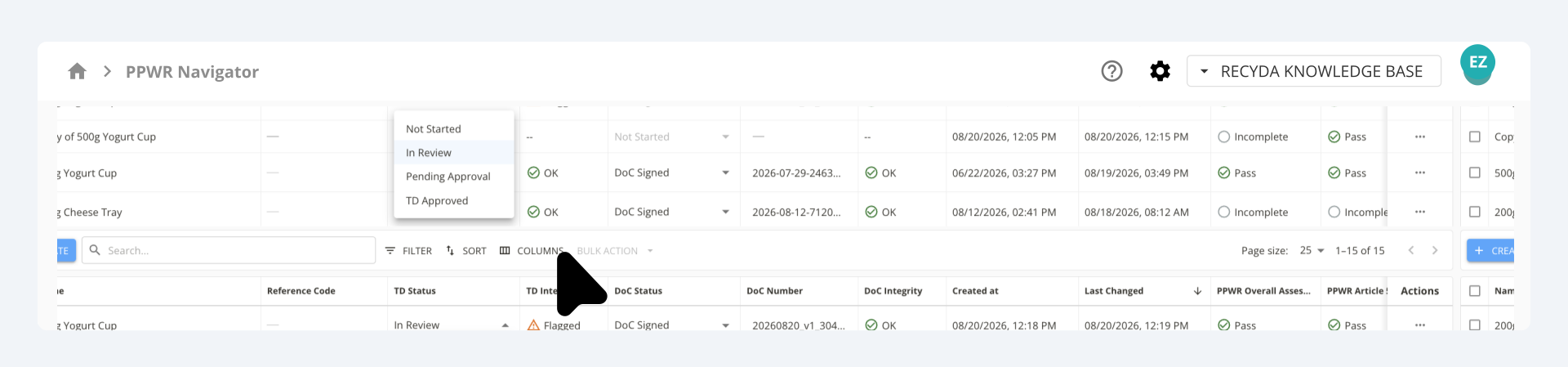
- Move TD Status from "Not Started" to "In Review" to keep track of which TDs you're currently reviewing. This step can be skipped.
- Complete all PPWR assessments so that the "PPWR Overall Assessment" column shows "Pass".
- Download the "draft" TD Summary Document to check if everything is accurate and complete (e.g. all related suppliers and files are mentioned).
- Move TD Status to "Pending Approval" or "Approved". This will lock the packaging system (making sure that no further changes can be made). You can skip "Pending Approval" unless you need to hand over the final approval step to another person. Once a packaging system is "Approved", the TD Summary Document will show a version number (instead of "Draft"), which is incremented every time the TD is re-approved.
- Move DoC Status from "Not Started" to "In Review" to keep track of which DoCs you're currently reviewing. This step can be skipped.
- Download the "draft" DoC to check if everything is accurate and complete (e.g. relevant Union acts are referenced).
- Move DoC Status to "DoC Issued". Once a packaging system is "DoC Issued", the DoC will show a unique DoC Number (instead of "Draft") and includes a version number that is incremented every time the DoC is re-issued.
- Move DoC Status from "DoC Issued" to "DoC Signed". If you're set up as a signatory, you can "Issue & Sign" directly, skipping this extra step. Once a packaging system is "DoC Signed", the DoC will show the signee with name, function, place and date of signature. The signed DoC will be stored together with the approved TD Summary Document and retained in a tamper-proof way.
.svg)
You can configure roles in order to control which users have permission to make status updates, approve, issue or sign.
The process can also be run across multiple packaging systems in bulk - select all the packaging systems for which you want to update the TD status or DoC status and click on BULK ACTION. If you select no packaging systems, the platform assumes you want to run a bulk action across your entire workspace.
7. Downloading the Declaration of Conformity (DoC) and Technical Documentation (TD)
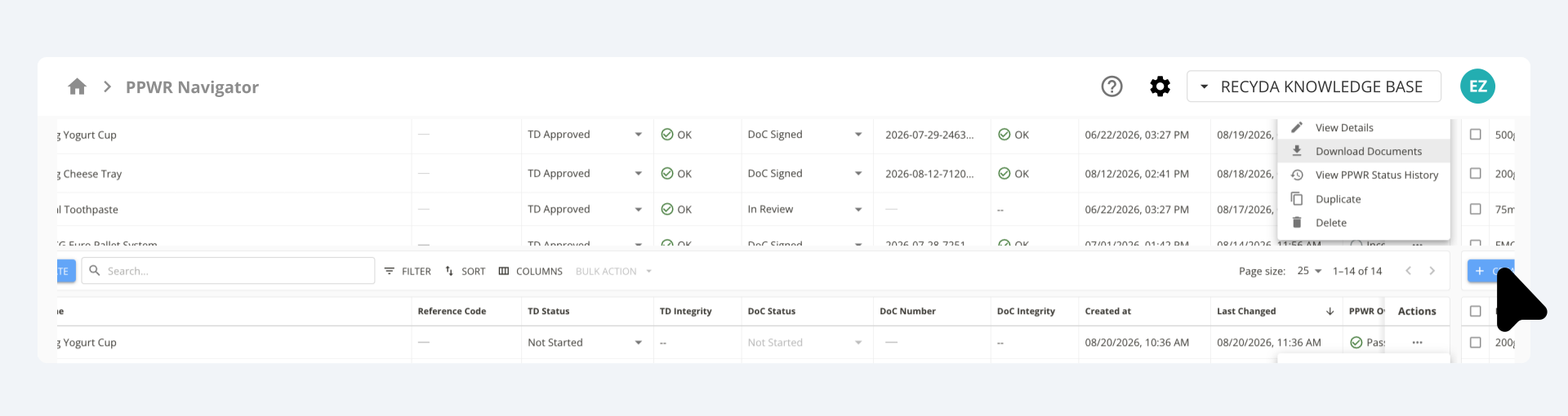
You can access the DoC and the TD Summary Document directly from the PPWR Navigator page (individually or in bulk).
- Go to the PPWR Navigator page.
- Open the Actions menu of any packaging system.
- Select Download Documents and check the box for the DoC and/or the TD Summary Document.
Both the DoC and TD Summary Document are generated using a pre-defined template. If you want a customised document, please contact Professional Services to:
- Adjust the document structure and content
- Add or remove data fields (all data attributes mapped in your Recyda setup are available)
- Incorporate your own legal interpretation or a specific industry association template
8. Change Control
Even after you've approved the Technical Documentation and signed a DoC, you still need to account for changes occurring over the lifetime of a packaging. For instance, you might need to change the manufacturer contact details, replace a component supplier, or re-assess packaging units after updating to the latest PPWR ruleset.
The PPWR Navigator helps you to keep track of such changes with the TD Integrity and DoC Integrity columns. Integrity is set to "OK" once the TD is approved or the DoC is signed. When you later change the TD or DoC Status back to "In Review", the Integrity is moved from OK to Flagged, indicating that the TD needs re-approval or the DoC needs re-issuing. In the PPWR Dashboard, it helps you differentiate between packaging systems that have never been approved/signed, packaging systems that have been approved/signed and those that have been approved/signed but need re-approval/re-issuance.
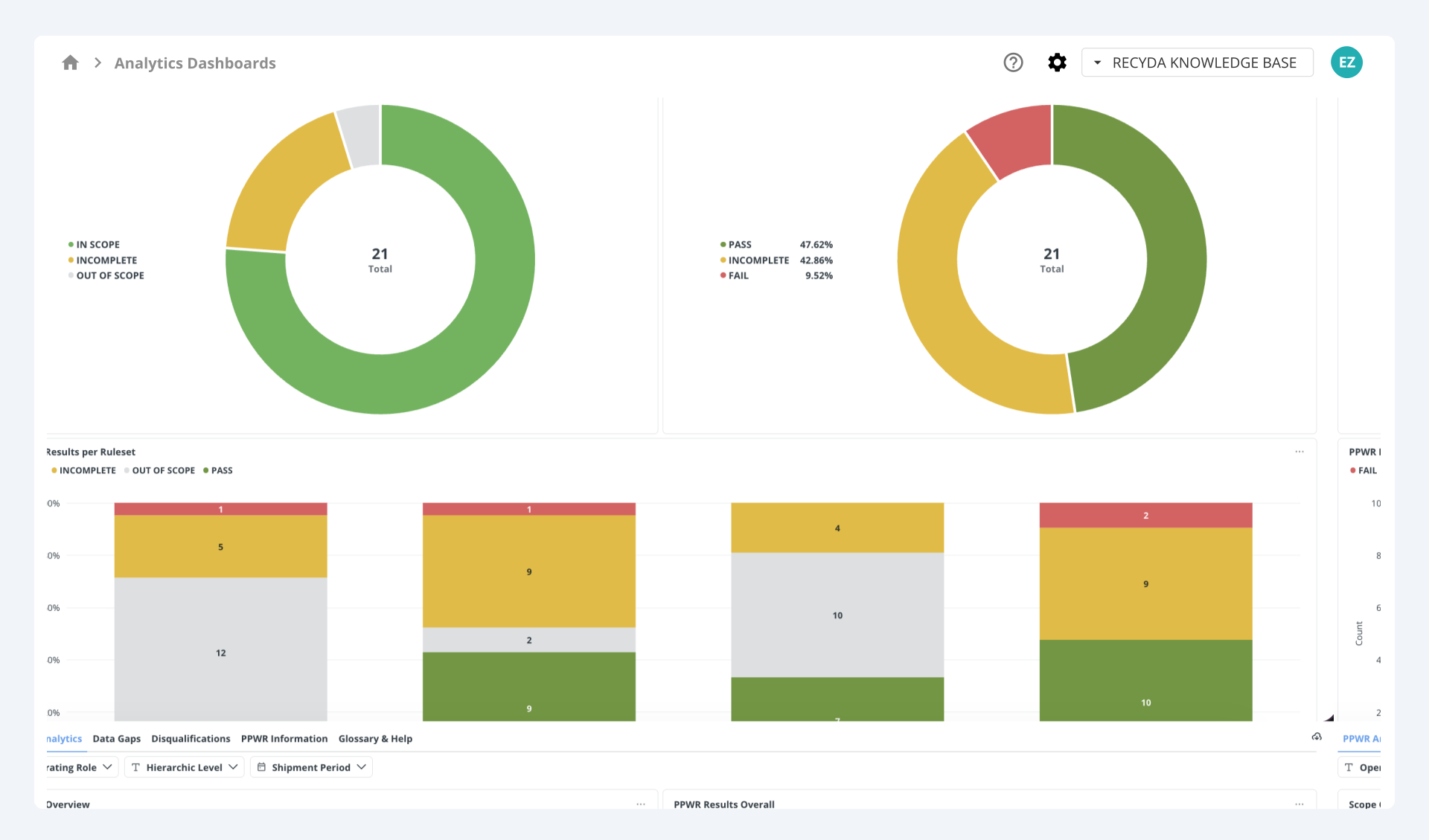
9. Portfolio Overview and Data Gap Analysis
A dashboard view provides an aggregated overview across your entire packaging portfolio, showing:
- How many packaging systems have complete assessments
- Where data gaps exist (e.g. missing operating role, missing hierarchy classification, missing substance data)
- Conformity assessment status across the portfolio for each assessed packaging system
This allows you to effectively identify which packaging systems still require attention.
10. Frequently Asked Questions
Q: Do I need to re-enter all my packaging data for PPWR? No. If you are already using Recyda, your existing packaging data is available. You only need to add the new PPWR-specific fields (e.g. packaging type, operating role, food contact status).
Q: What if my supplier only gives me one general conformity statement for all their supplied components? You can use the Override Editor to answer assessment questions for all components from that supplier.
Q: Do I need to upload documents to Recyda? No. You can choose to register files via external links. Recyda then acts as an index, so you always know where the document is, even if Recyda cannot access it directly.
Q: Do I need one TD and DoC per finished good / SKU? You need one per packaging system, which could be multiple packaging systems for a SKU.
Q: What happens if I change a component material after signing a DoC? You can revert the TD Status back to "In Review", apply the change and check if this has any impact on the overall assessment. Then move TD Status to "Approved". The TD Summary Document will reflect the change and show a new version.
Q: Can I change the DoC/TD Summary Document? Yes. The default template provided by Recyda can be customised by our Professional Services team.
Summary: End-to-End Process
1. Set up your business entity and signatories
↓
2. Set up packaging systems (reuse existing data + add PPWR-relevant data)
↓
3. Register your suppliers and link them to the components and packaging units they are providing
↓
4. Upload/link any documents relevant for your technical documentation on the Files page and link them to the relevant components and packagings
↓
5. Run the PPWR Scope Assessment first, then Article 5 and 11 Assessments (Heavy Metals, PFAS, Reuse).
↓
6. Review assessment results and address any data gaps
↓
7. Download and review the "draft" TD Summary Document and keep track of your review process with the TD Status, trying to move every packaging to "Approved" status.
↓
8. Download and review the "draft" Declaration of Conformity (DoC) and when done, issue and sign the DoC
↓
9. Monitor portfolio via dashboard — check for any packaging systems that are flagged for re-approval/re-issuance or have no DoC yet